Type what you need. Full Thought remembers it and helps you get it done.
Full Thought is a private assistant you use on your computer. You write to it in everyday words. It answers your questions, keeps track of what you've told it, and can draft emails and find time on your calendar. Nothing important happens until you say OK.
How you use it
Type what you need.
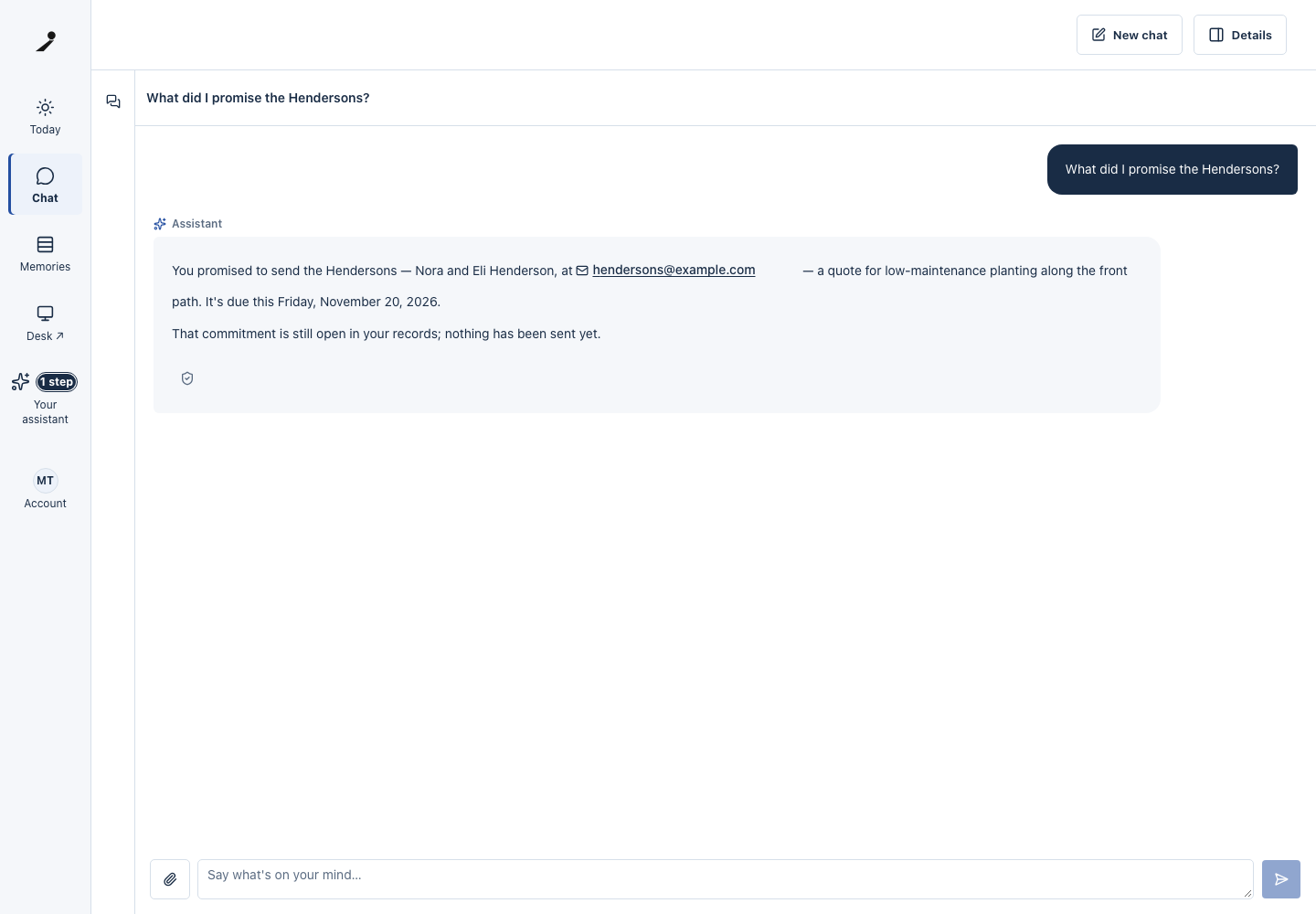
Write a question or a task in plain words. For example: "What did I promise the Hendersons?"
It answers or starts the work.
Full Thought replies with what it knows, or begins the task, such as writing a draft reply.
You approve anything important.
Before it sends, deletes or changes something, it shows you exactly what it will do and waits for your OK.
Maya types: What did I promise the Hendersons? The assistant looks up her records and answers.
It remembers what you tell it
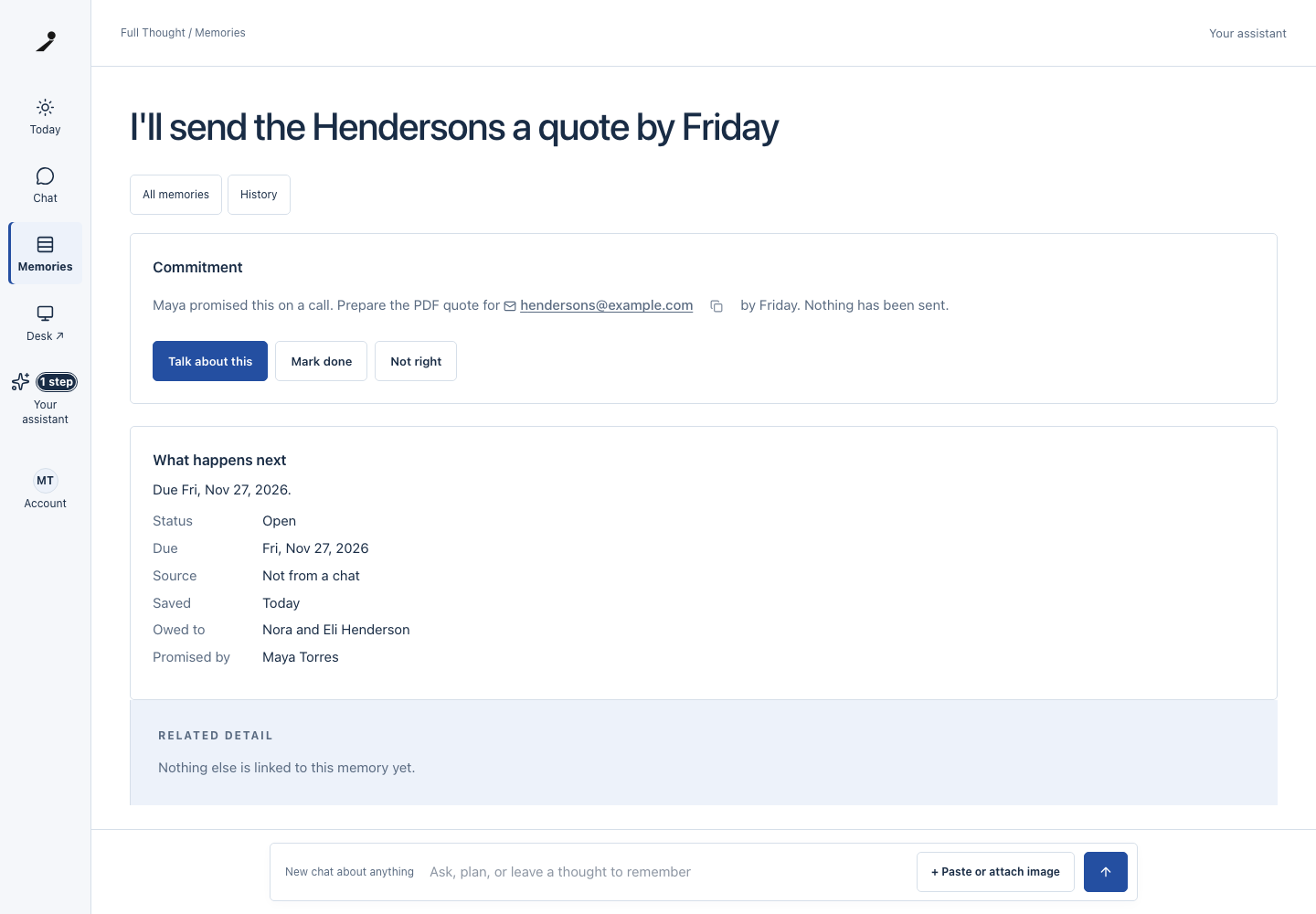
Tell Full Thought something once, such as "No meetings before 10 AM," and it uses that from then on. You don't have to repeat yourself. Everything it has saved about you is on one page. Search it, open any item, and tell it when something isn't right.
Maya opens Memories and sees everything Full Thought has saved: her clients, jobs, a supplier, an appointment and a promise to the Hendersons.
It keeps track of what you promised
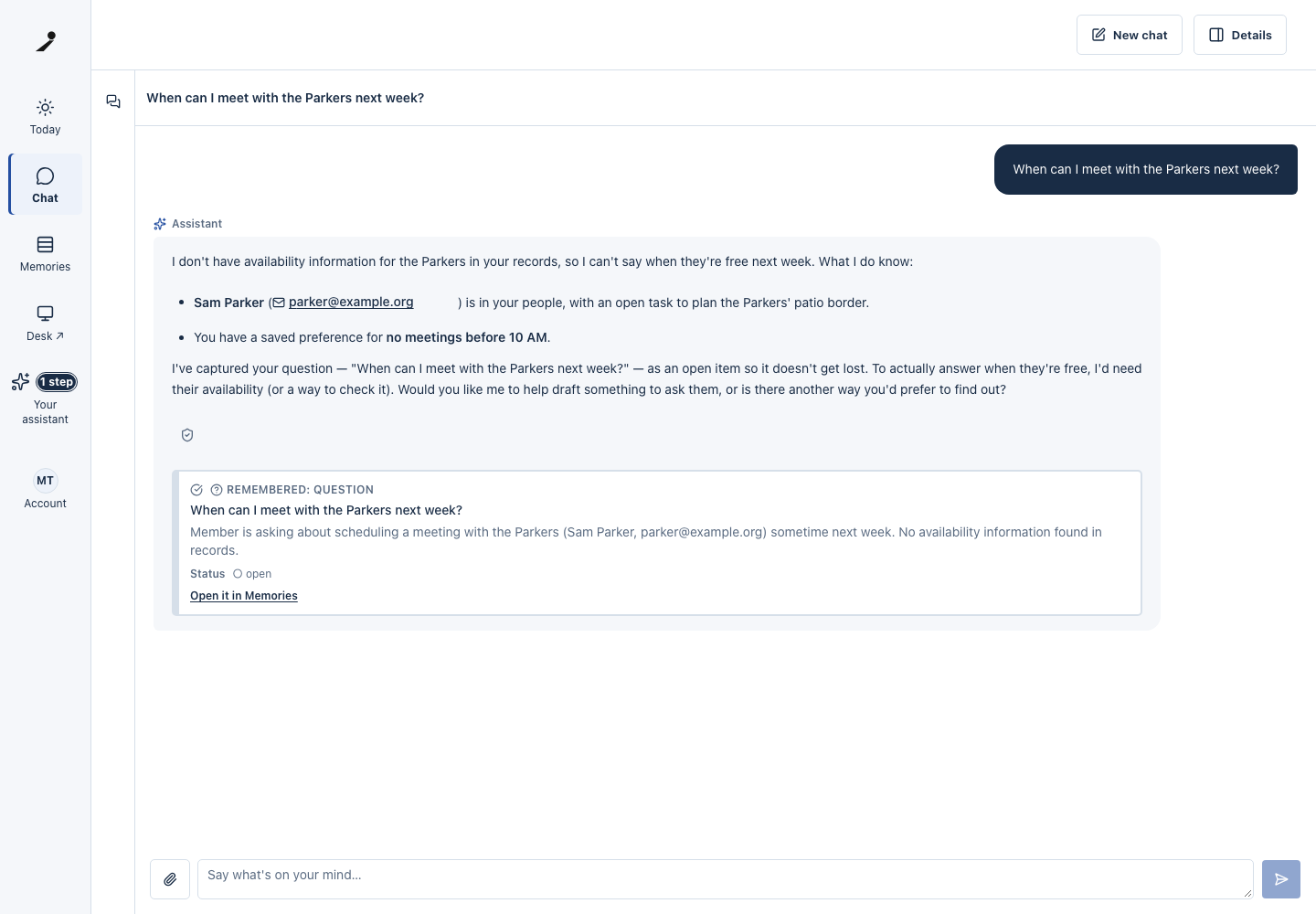
When you mention a promise, such as sending a quote by Friday, Full Thought saves it with who it's for and when it's due.

What else it does
It drafts email replies and waits for you to send them. It finds meeting times on your calendar. It asks before it sends, deletes or changes anything important. It shows you what it did. It only uses the accounts you connect, and you can disconnect any of them in Settings.
Works with the apps you already use
Connect the accounts you want Full Thought to use. You sign in to each one yourself, and you can disconnect any of them in Settings.
Gmail
reads and organizes your email, drafts replies, and sends only with your OK.
Google Calendar
shows your schedule, and adds or changes events with your OK.
Calendly
finds your scheduling links and open times, and manages bookings.
Todoist
finds and organizes your tasks and projects.
Notion
searches your pages and works with your databases.
Zoom
finds your meeting recordings.
Salesforce
connects through an app your company's administrator sets up.
GitHub
works with code repositories, issues and pull requests.
Getting started
- Request access with your email address.
- When access opens, we email you an invite code.
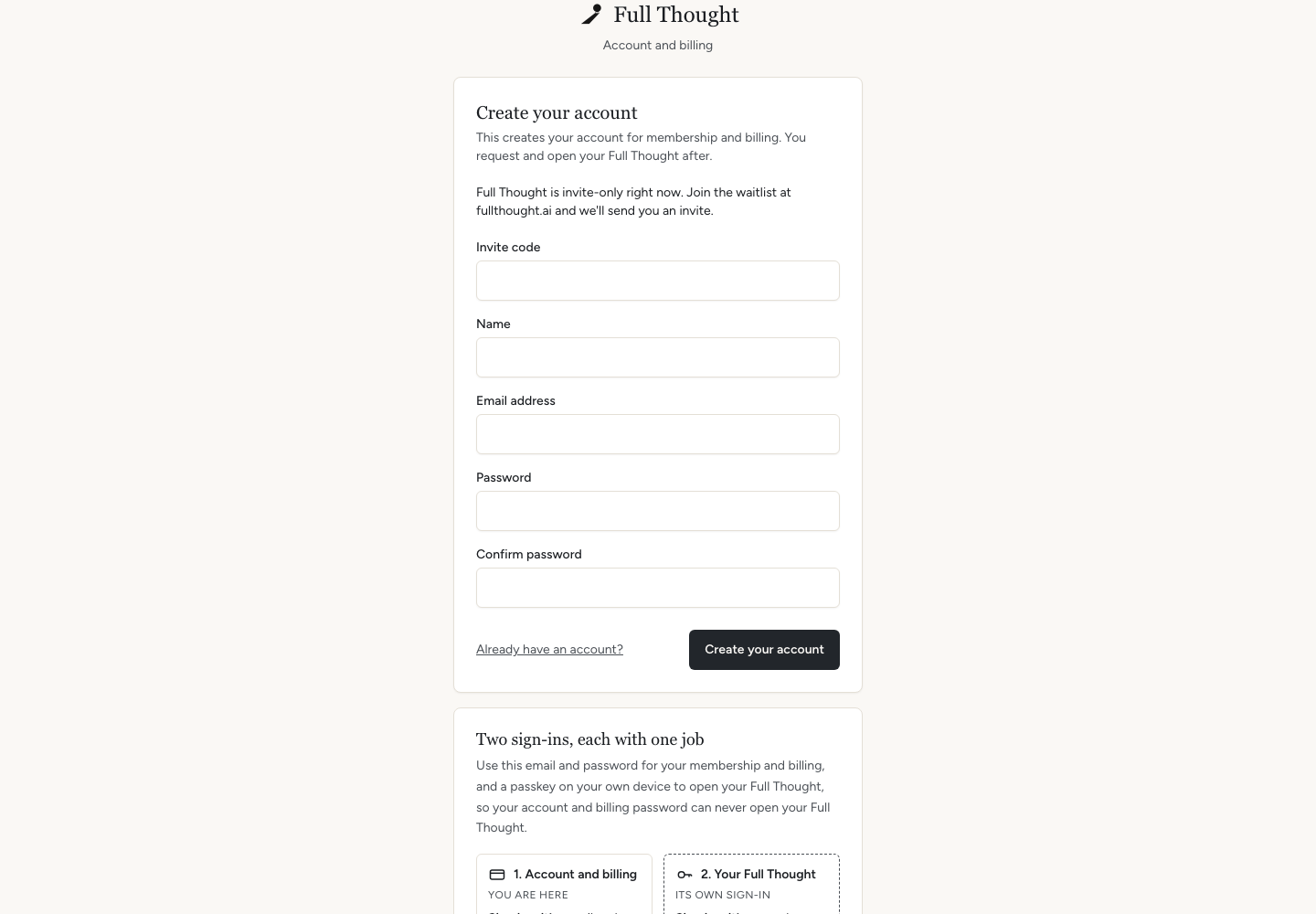
- Create your account with the code. Then request your Full Thought. You see your price before you pay.
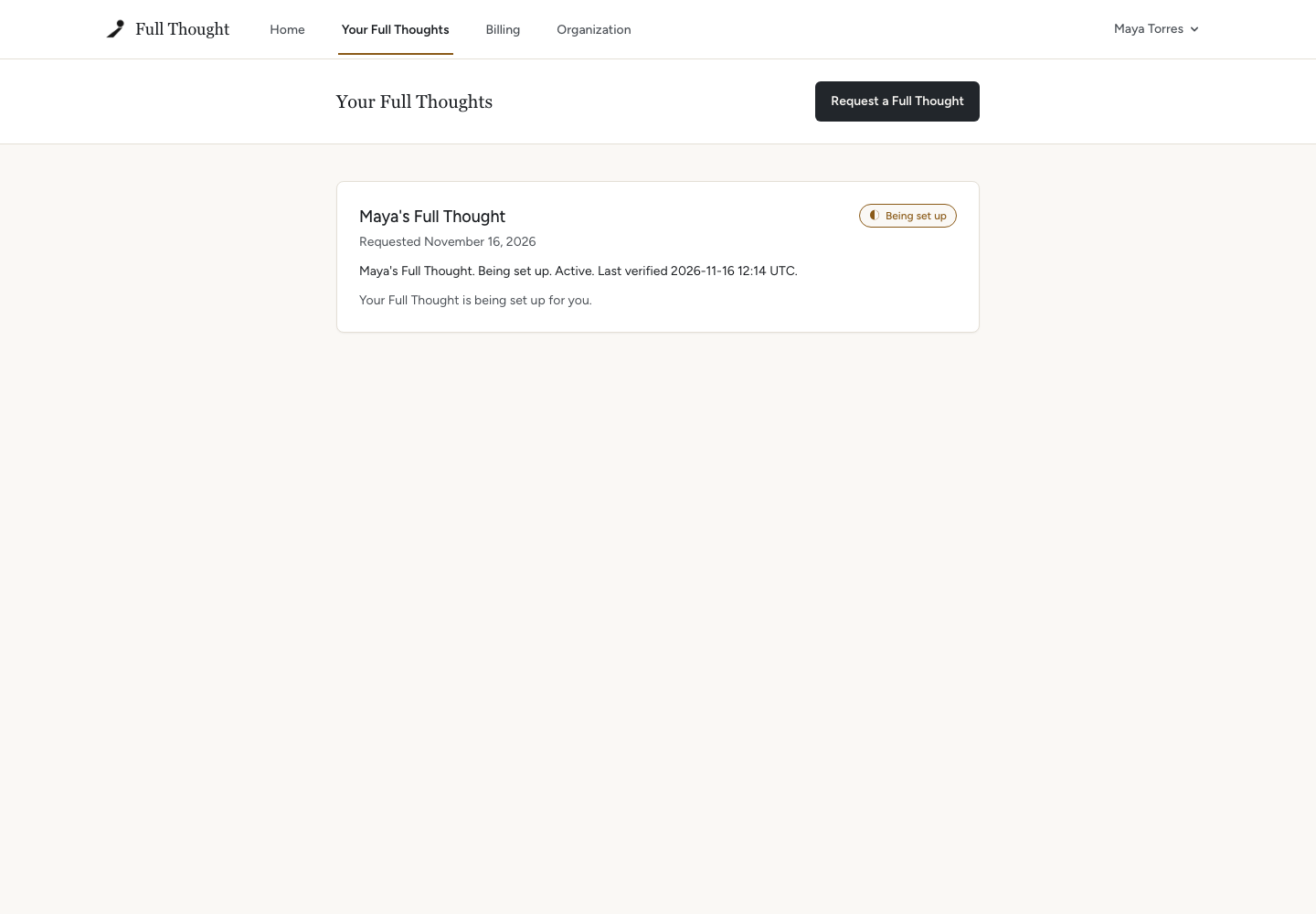
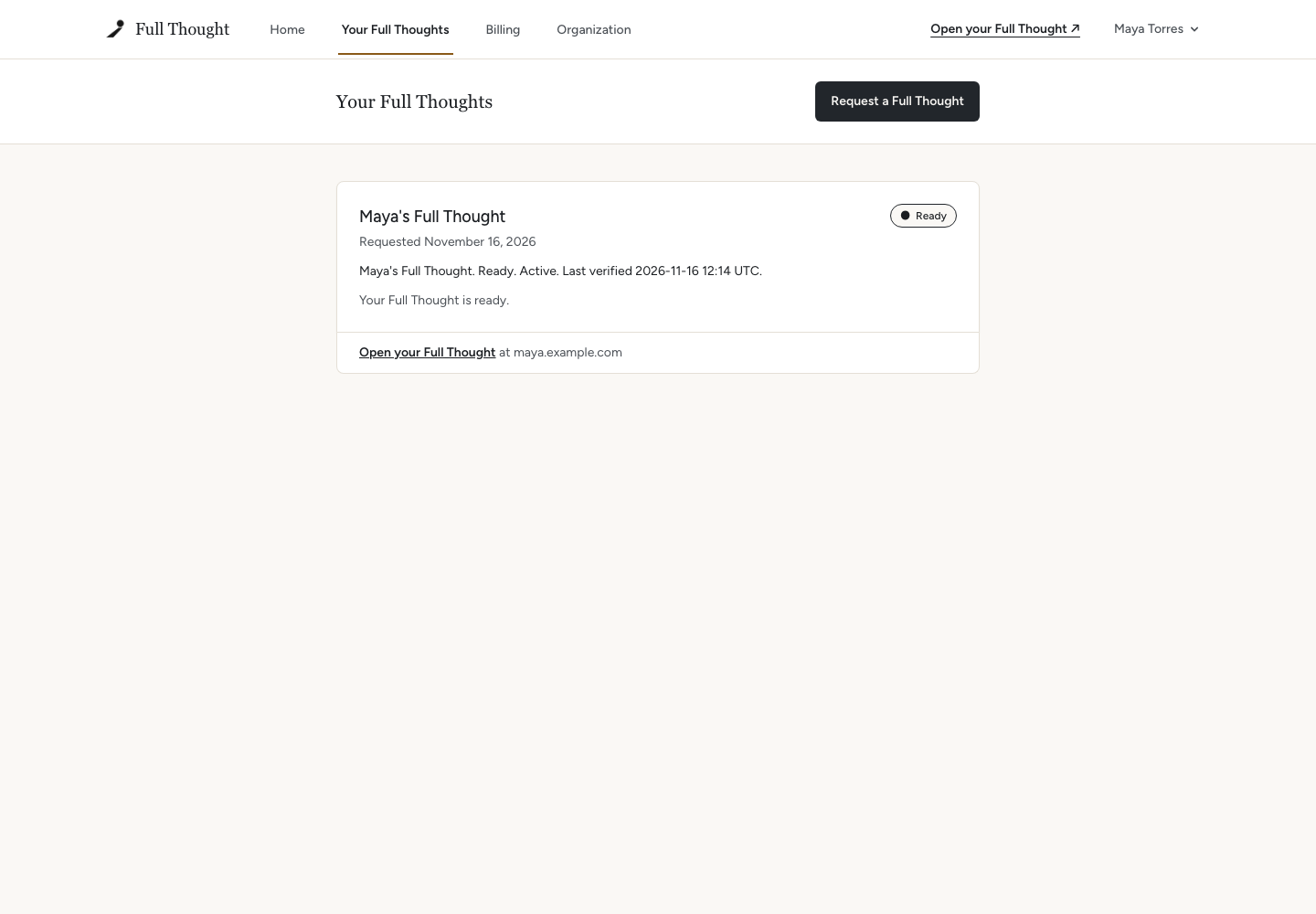
- We set up your private Full Thought. Your account page shows its progress, and says Ready when it's done.
- Open it and sign in with a passkey, the sign-in your phone or computer already uses for fingerprint or face unlock. Then install it on your computers, and connect your email and calendar if you want to.
- Start typing.



Questions people ask first
Do I need to know anything about AI?
No. If you can write an email, you can use Full Thought. You type what you need in everyday words.
Is my information private?
Your information is kept in a space that belongs only to you. We don't sell it, use it for advertising, or use it to train AI models.
How we protect your informationWhat does it cost?
Pricing depends on how you'll use it. We'll go over it with you before your access opens.